Workspace Setup
Creating a New Workspace
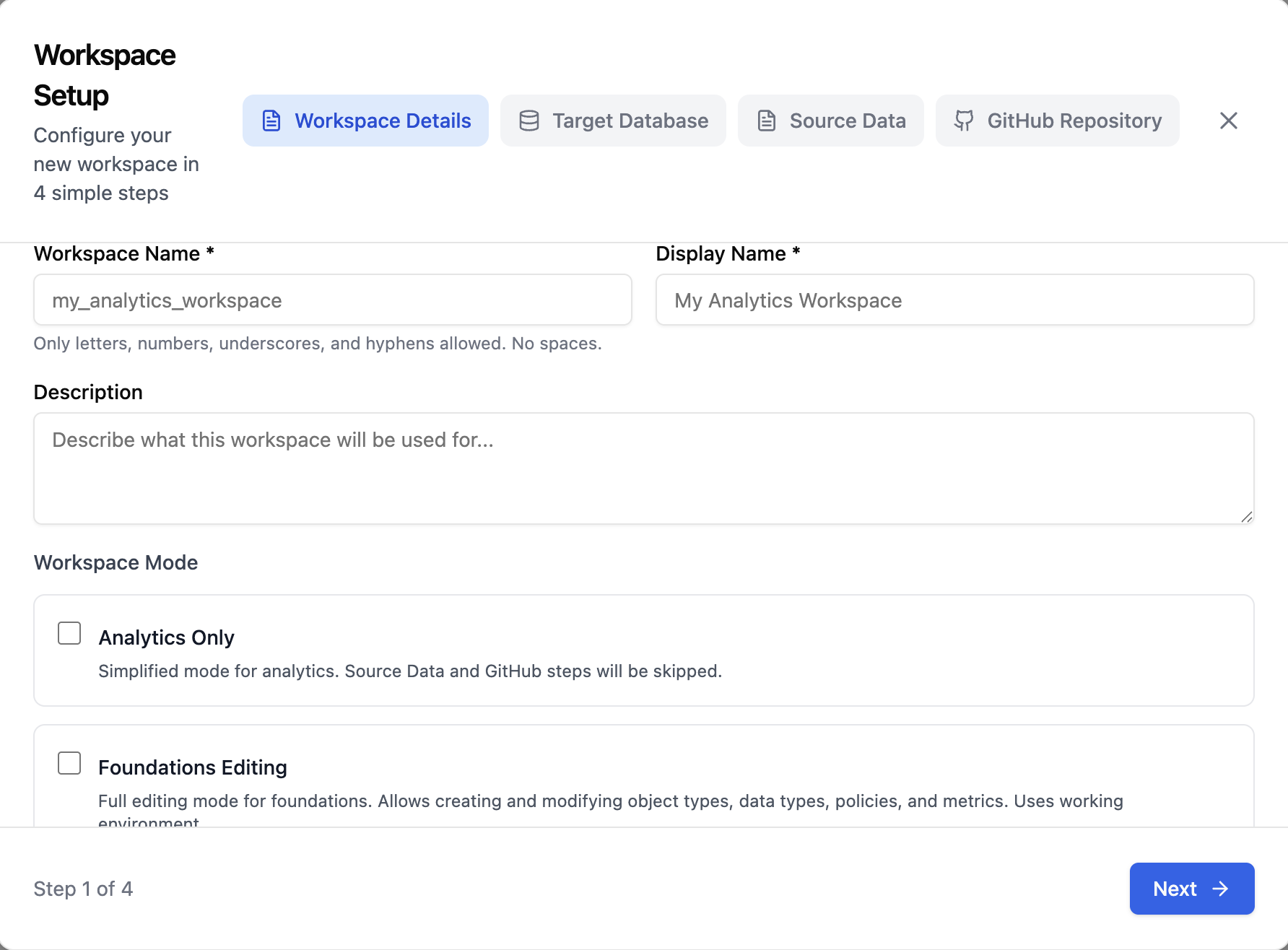
When you first log in or need to start a new project, you'll create a workspace. A workspace is your isolated environment where all your data sources, target schemas, mappings, and configurations live.
Step 1: Launch the Setup Wizard
After logging in, if no workspace exists yet, the Setup Wizard will appear automatically. If you're adding a new workspace, click the workspace selector at the top of the screen and choose Create New Workspace.
Step 2: Name Your Workspace
Give your workspace a descriptive name that reflects the project (e.g., "Marketing Attribution", "Customer 360", "Revenue Pipeline").
Step 3: Connect Your Source Database
You'll be asked to provide connection details for your source data:
- Database type — Snowflake, Databricks, PostgreSQL, etc.
- Connection credentials — Host, port, database name, username, and password
- Schema selection — Which schemas and tables to make available
Datalinx will test the connection before proceeding to confirm everything is working.
Step 4: Configure Your Target
Choose where your transformed data should land:
- Use the same database as your source (different schema)
- Configure a separate target database
- Use Datalinx's built-in storage
Step 5: Review and Create
Review your configuration and create the workspace. You'll be taken to the main workspace view where you can begin discovering your data.
Workspace Settings
After creation, you can access workspace settings at any time to:
- Update database credentials
- Add or remove source schemas
- Configure workspace-level preferences
- Manage workspace prompt (custom instructions for the AI agent)
Switching Workspaces
If you have access to multiple workspaces, use the workspace selector at the top of the screen to switch between them. Each workspace is completely independent — switching workspaces loads a fresh set of sources, targets, and mappings.
Workspace Types
Datalinx supports different workspace configurations depending on your use case:
- Standard Workspace — Full access to all features: Configure, Explore, and Foundations
- Analytics-Only Workspace — Focused on querying and insights, with the Configuration tabs hidden. Ideal for business analysts who don't need to manage pipelines.