Configure: Connect
The Connect tab is where you manage external connections — the integrations that let Datalinx read from your source databases and write to your target destinations.
What is a Connection?
A connection is a configured link between Datalinx and an external system. This includes:
- Source connections — databases where your raw data lives (Snowflake, Databricks, PostgreSQL, etc.)
- Destination connections — platforms where your processed data needs to go (marketing tools, analytics platforms, etc.)
The Connections List
When you open the Connect tab, you'll see all configured connections with:
- Connection name — a descriptive label you've assigned
- Type — the database or platform type
- Status — whether the connection is active and healthy
- Last tested — when the connection was last verified
Managing Connections
Adding a New Connection
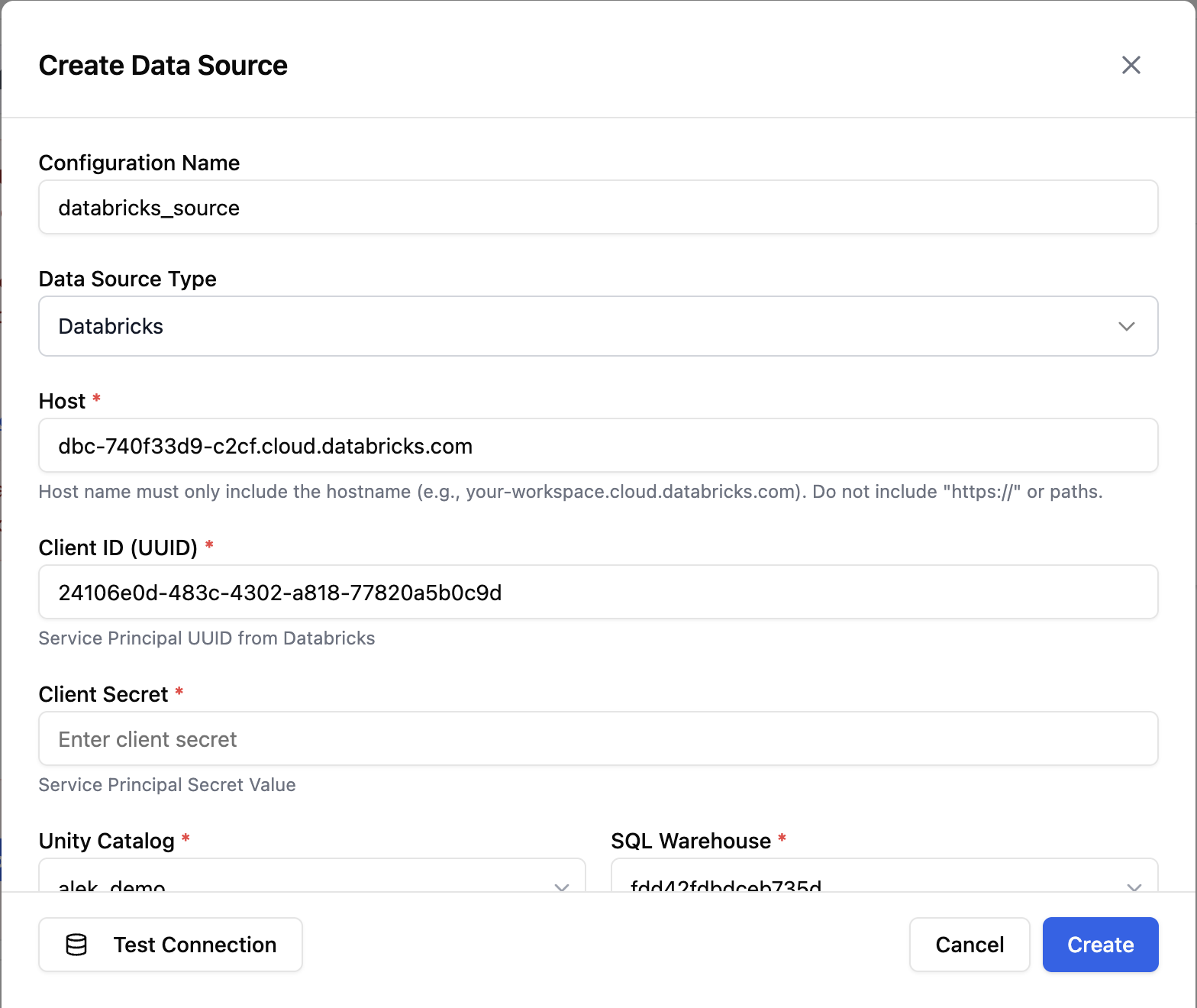
- Click Add Connection
- Select the connection type (Snowflake, Databricks, PostgreSQL, etc.)
- Fill in the required credentials:
- Host / endpoint URL
- Database name
- Username and password (or other auth method)
- Any provider-specific settings (warehouse, catalog, role, etc.)
- Test the connection to verify it works
- Click Create
Testing a Connection
You can test any connection at any time to verify it's still working. This performs a live check against the external system and reports:
- Success — the connection is active and working
- Failure — with details about what went wrong (e.g., invalid credentials, network unreachable, permission denied)
Editing Credentials
If credentials change (e.g., a password rotation), you can update them from the Connect tab without recreating the entire connection.
Security
- All credentials are encrypted at rest using the Datalinx master key
- Credentials are never displayed in plain text after saving
- Connection details are scoped to the workspace — they aren't shared across workspaces
Tips
- Test connections after any credential changes or network configuration updates
- Use descriptive connection names (e.g., "Snowflake Production Warehouse" rather than "Connection 1")
- If a connection fails, check the error details — common issues include expired passwords, IP allowlist changes, or permission revocations
- Each workspace needs its own connections, even if they point to the same database — this maintains isolation between projects