Transform
The Transform tab is the heart of Datalinx's data engineering workflow. This is where you visually connect source fields to target fields, define transformations, and build the logic that turns raw data into clean, unified output.
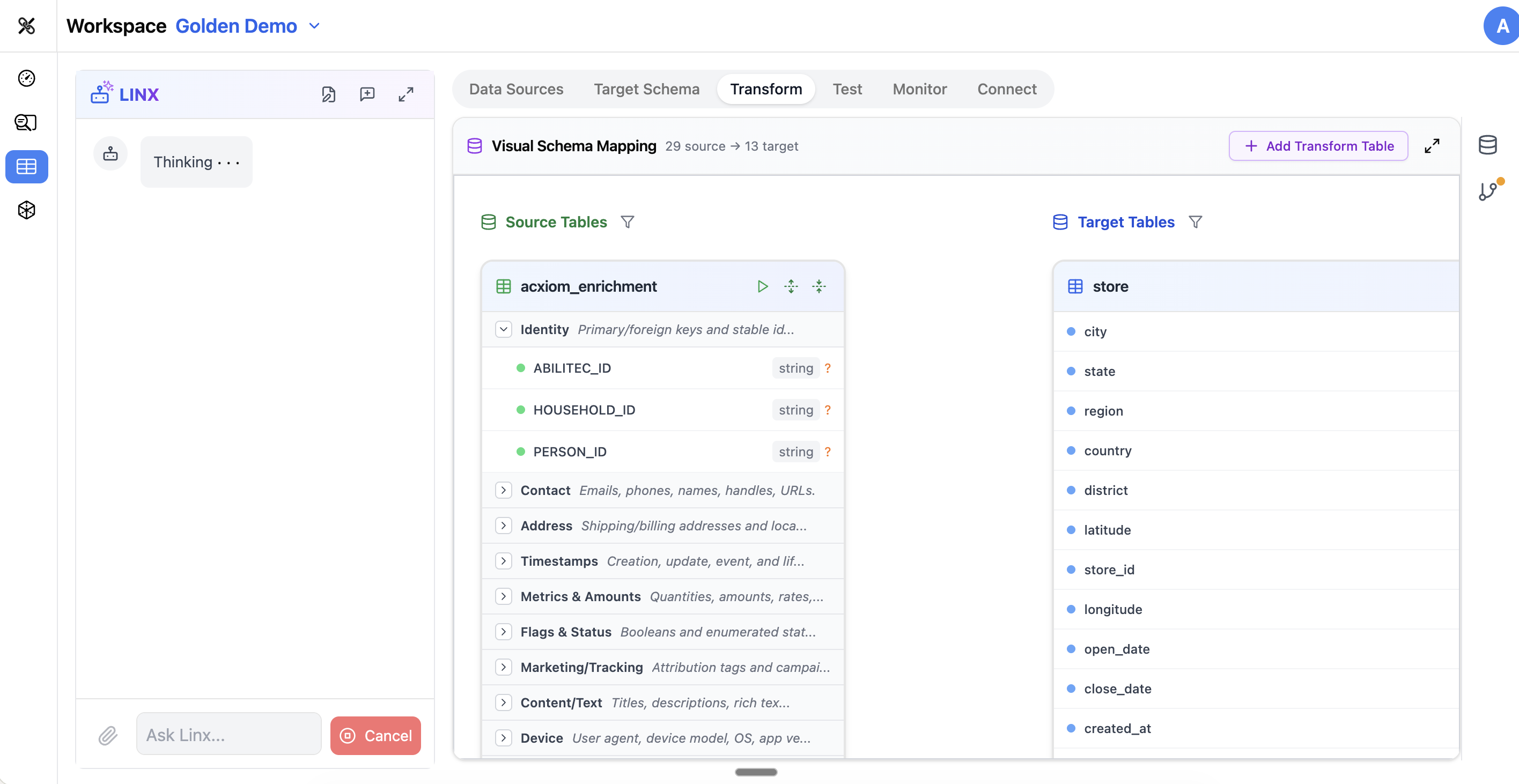
The Visual Mapping Interface
The Transform tab uses a visual drag-and-drop interface that shows:
- Source tables on the left side
- Target tables on the right side
- Lines connecting source fields to target fields
Each line represents a mapping — a defined relationship between a source column and a target column.
How to Create a Mapping
- Find the source field you want to map (left side)
- Drag it to the corresponding target field (right side)
- A connection line appears, and the mapping is saved
You can also ask the Pipeline Agent to create mappings automatically: "Map the customer_records table to the customers target."
Mapping States
Each mapping has a visual indicator showing its status:
- Mapped — a source field is connected to a target field
- Unmapped — a target field has no source connected yet
- Error — there's a problem with the mapping (e.g., incompatible data types)
- Ambiguous — the AI found multiple possible sources and needs your input
Confidence Ratings
When the AI suggests mappings, each one comes with a confidence rating indicating how sure the AI is about the connection. High-confidence mappings are usually correct; lower-confidence ones should be reviewed.
The Transform Sidebar
On the right side of the Transform tab, you'll find a sidebar with three panels:
Data Configuration Panel
This panel lets you manage the source data that feeds into your mappings:
- Source selection — choose which source tables/schemas are available for mapping
- CTE management — create, edit, and organize Common Table Expressions (see below)
- Column filtering — find specific columns across your sources
Mapping Details Panel
When you click on a specific mapping (connection line), this panel shows:
- The source and target field details
- Any transformation logic (SQL expressions)
- Data type information
- Options to edit or remove the mapping
GitHub Panel
If your workspace is connected to GitHub, this panel lets you:
- View changes since the last commit
- Write commit messages
- Push changes to your repository
- Create pull requests for review
Common Table Expressions (CTEs)
CTEs are one of the most powerful features in the Transform tab. They let you pre-process source data before it flows into your target mappings.
When to Use a CTE
- Joining tables — combine data from two or more source tables (e.g., join customers with their orders)
- Filtering — exclude rows you don't want (e.g., only active users)
- Aggregating — summarize data (e.g., calculate total orders per customer)
- Transforming — apply complex SQL logic before mapping
Creating a CTE
- Open the Data Configuration panel in the sidebar
- Click Add CTE
- Give it a name (e.g.,
customer_orders_joined) - Write the SQL that defines the CTE
- The CTE now appears as a "virtual table" on the source side that you can map from
CTEs appear as cards in the visual mapping interface, sitting between your source tables and target tables.
CTE Example
If you have a users table and an orders table, and your target needs total_order_amount per customer:
SELECT
  u.user_id,
  u.email,
  u.name,
  SUM(o.amount) as total_order_amount,
  COUNT(o.order_id) as order_count
FROM users u
LEFT JOIN orders o ON u.user_id = o.customer_id
GROUP BY u.user_id, u.email, u.name
This CTE creates a pre-joined, aggregated view that you can then map directly to your target customers table.
JSON and Nested Data
The Transform tab handles complex data structures:
- JSON fields — expand JSON columns to map individual nested keys
- Array fields — expand arrays to access elements
- Object fields — drill into nested objects
The visual interface shows these as expandable trees, so you can map individual properties from within JSON columns.
Bulk Operations
For efficiency, the Transform tab supports:
- Clear all mappings — start fresh (with confirmation dialog)
- Refresh from source — reload source schema if the database has changed
- Save — persist all your mapping changes
Using the Pipeline Agent
The Pipeline Agent is especially powerful in the Transform tab:
- "Map all source fields to the target customers table" — auto-generates mappings
- "Create a CTE that joins users and orders by user_id" — builds the SQL for you
- "Why is the email mapping showing an error?" — diagnoses issues
- "Add a transformation to convert created_at to UTC" — applies logic to specific mappings
Tips
- Start by letting the AI create initial mappings, then review and adjust — this is much faster than mapping everything manually
- Use CTEs to pre-process complex joins before mapping — it keeps your mappings clean and simple
- Pay attention to mapping confidence scores — low-confidence mappings often need a human review
- If a target field has no obvious source, consider whether you need a CTE to derive it
- The GitHub panel lets you version-control your mappings — use it if you're working in a team