Explore: Insights
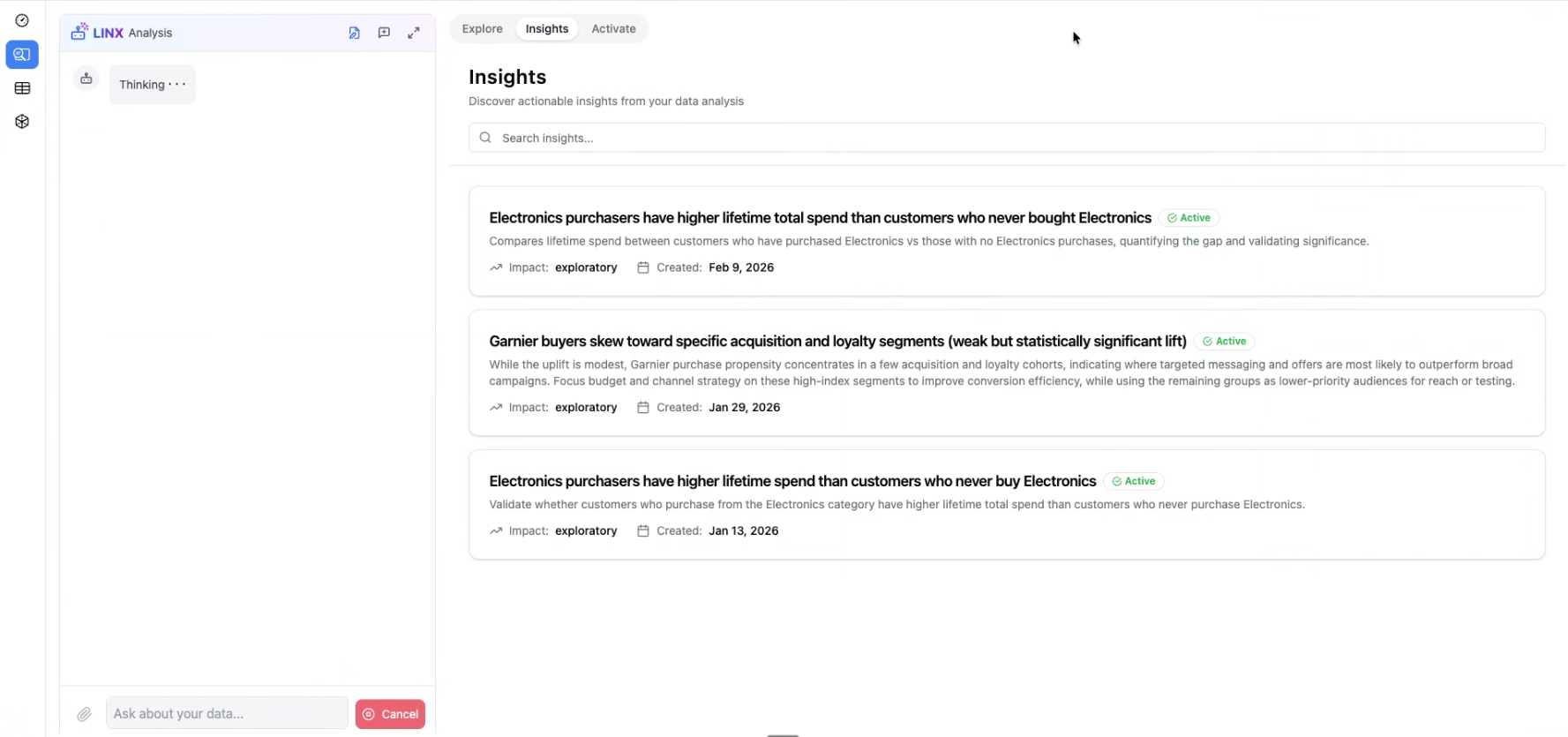
The Insights tab is where Datalinx's AI generates analysis about your data automatically. Unlike the Explore tab where you write queries yourself, Insights uses the Analysis Agent to proactively discover patterns, anomalies, and trends in your data.
How Insights Work
Insights are AI-generated analyses that combine:
- A question or hypothesis about your data
- SQL queries that investigate the question
- A verdict — the AI's conclusion based on the data
- Supporting evidence — the actual numbers and logic behind the conclusion
Think of each insight as a mini-investigation that the AI conducts on your behalf.
The Insights List
When you open the Insights tab, you'll see a list of insights with:
- Title — a brief description of what was analyzed
- Status badge — indicating the insight's state:
- Published — complete and reviewed
- Draft — generated but not yet reviewed
- Failed — the analysis encountered an error (can be retried)
- Confidence (when enabled) — how confident the AI is in its conclusion
Click any insight to expand its full details.
Inside an Insight
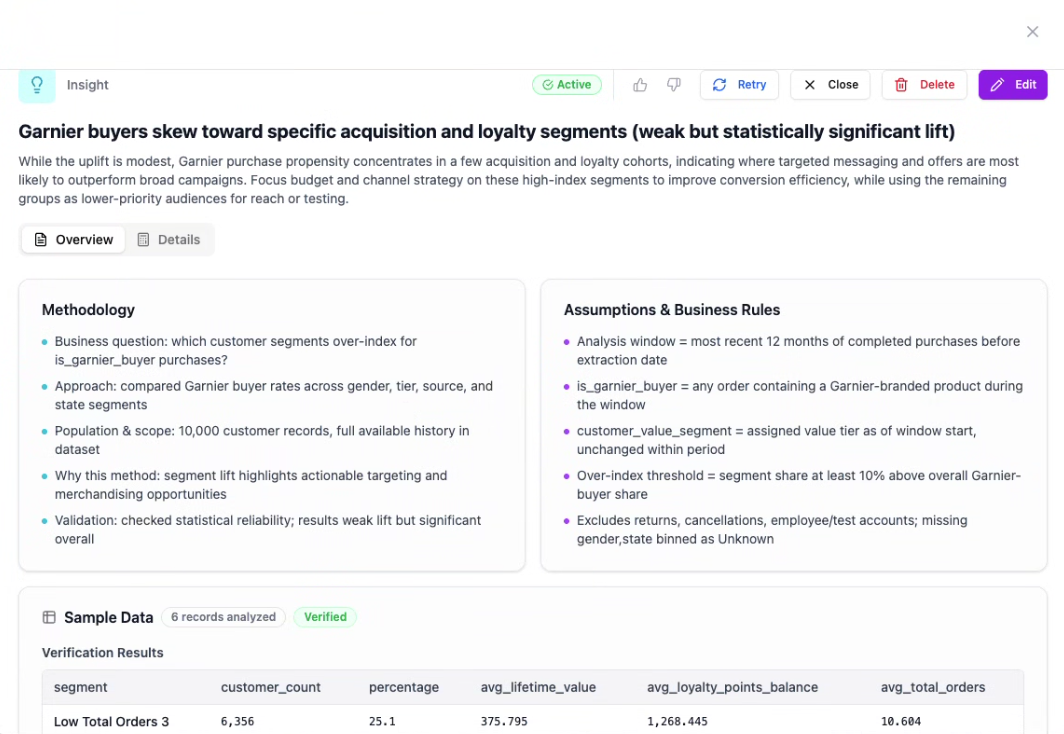
Each insight contains several sections:
Verdict
A color-coded summary of the AI's finding. This is the headline conclusion — for example, "Customer churn rate increased 15% in Q4" or "Campaign X outperformed Campaign Y by 3x on conversion rate."
Supporting Evidence
The data behind the verdict, including:
- SQL queries — the actual queries the AI ran (you can copy these to use in the Explore tab)
- Key numbers — specific metrics and calculations
- Calculation logic — how the AI arrived at its numbers
Methodology
An explanation of the approach the AI took — which tables it queried, what assumptions it made, and how it structured its analysis. This is important for building trust in the results.
Assumptions
Any assumptions the AI made during its analysis (e.g., "Null values in the status column were treated as 'unknown'").
Interacting with Insights
- Feedback buttons — Mark an insight as helpful or not helpful. This improves future insight quality.
- Retry — If an insight failed, you can retry it with one click.
- Delete — Remove insights that aren't relevant.
- Copy SQL — Copy any SQL block from an insight to reuse elsewhere.
Generating New Insights
You can ask the Analysis Agent to generate insights by typing questions like:
- "What are the key trends in our customer data?"
- "Are there any anomalies in last month's orders?"
- "Compare conversion rates across our marketing channels"
- "What's driving churn in our subscriber base?"
The agent will investigate your data and create new insight entries with its findings.
Tips
- Insights work best when your data is well-mapped and your Foundations semantic layer is defined — the AI uses these to understand what your data means
- Review the SQL in each insight to verify the logic matches your expectations
- Use the feedback buttons — they genuinely help the AI learn what's useful to you
- Failed insights usually mean the AI couldn't find the right tables or columns — check your source configuration if this happens frequently